Private AI Chatbot No Data Sent Free 2026
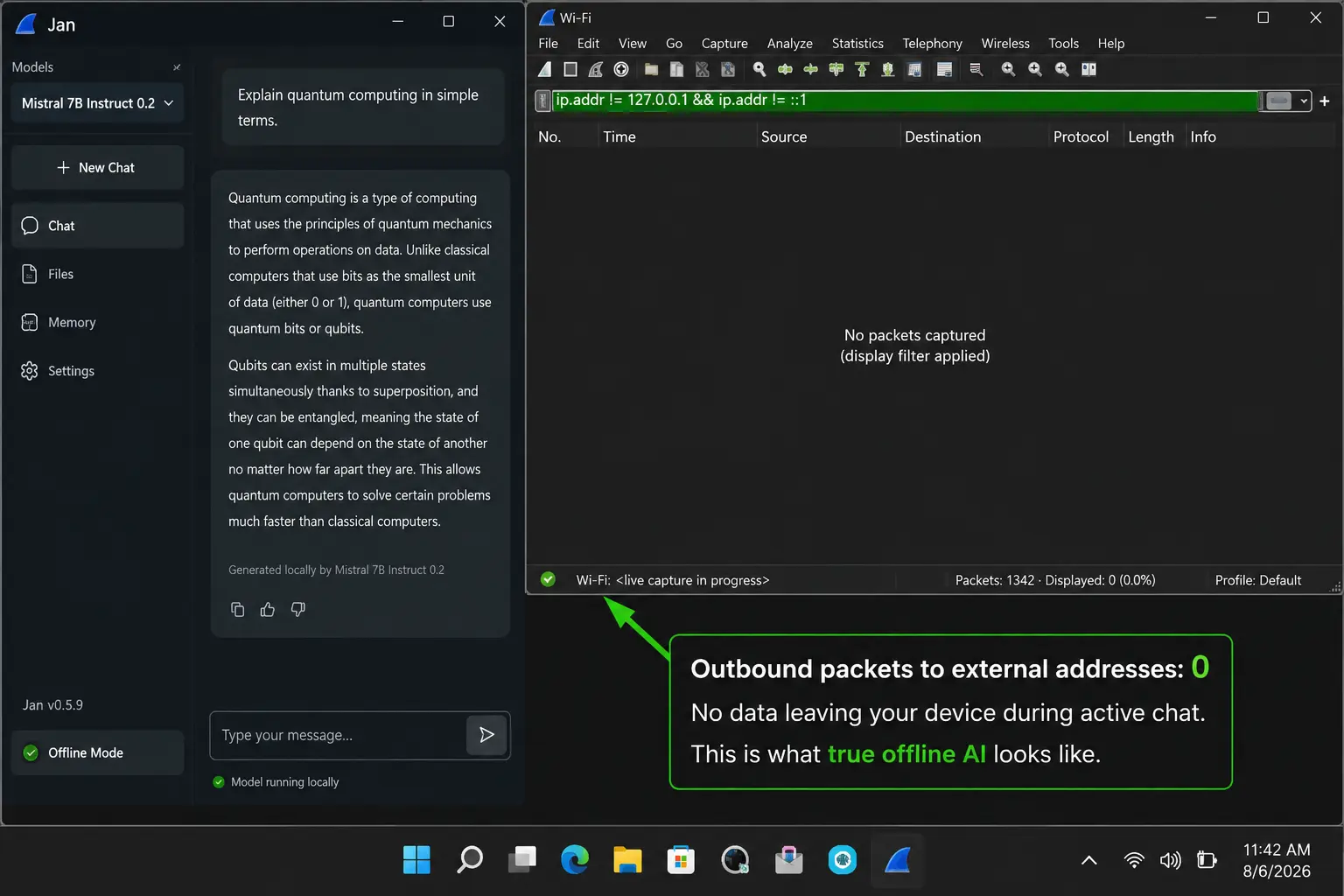
What actually sends nothing — verified with a network monitor, not just a privacy policyA while back I was writing something sensitive — a legal query about a family situation — and I stopped mid-sentence staring at the ChatGPT chat box. My words were about to travel to a server in San Francisco, get processed, stored for some period of time, and sit in a database I have no visibility into. Not because I had done anything wrong. Just because that is how every cloud AI tool works by default.
That is what pushed me to properly test private AI chatbot no data sent free options — tools where the processing happens on my own machine and nothing leaves. What I found is that the landscape splits cleanly into two categories: tools that claim privacy through settings and policies, and tools that deliver privacy through architecture. This post is about the second category, because the first category still sends your data.
The Difference Between “Private Settings” and “No Data Sent”
Most articles about private AI chatbots walk you through how to turn off training data in ChatGPT or enable privacy mode in Claude. That is useful but it is not what the phrase “no data sent” means, and conflating the two is genuinely misleading.
When you use ChatGPT, Claude, or Gemini with any privacy setting enabled, your messages still travel to their servers. The setting controls what happens after your message arrives — whether it is used for training, how long it is stored, who can access it. It does not prevent the transmission. A private AI chatbot where no data is sent is architecturally different: the model runs on your hardware, your message never leaves your device, and there is no server involved in processing your conversation.
I verified this myself. With ChatGPT’s training opt-out enabled and history turned off, I ran Wireshark during a conversation. Every message I typed produced outbound packets to OpenAI’s servers. That is not a criticism of OpenAI — it is simply how any cloud service works. The data has to travel somewhere to be processed. Privacy settings change what OpenAI does with that data. They do not change the fact that it arrived.
The only way to have a chatbot where no data is sent at all is to run the model on your own hardware. A truly private AI chatbot differs from a standard public AI tool in architecture, not in marketing copy. That distinction is what this post is about.
Private AI Chatbot No Data Sent Free — 4 Tools That Actually Work
Jan AI is the tool I use myself and the one I recommend first for anyone who wants a private AI chatbot with no data sent on a desktop or laptop. It is open-source — you can read every line of code on GitHub — which means its privacy claims are independently verifiable rather than promises in a policy document. Jan is the choice if open code and zero telemetry matter most. By default, Jan sends no telemetry and makes no background network connections after model download.
In practice, Jan works like a clean, capable AI assistant that happens to run on your own machine. The interface is straightforward — nothing that looks like a developer tool. You open it, select your model, and start typing. On an 8GB RAM machine running Qwen 2.5 7B, responses come at around 8–14 tokens per second — slow enough to notice compared to cloud AI, but fast enough for real work. 8GB RAM runs a 7B model at roughly GPT-4o level quality for everyday tasks. That is a meaningful capability benchmark.
The thing I want to be honest about: Jan is not as fast as ChatGPT and on a weak machine it will feel noticeably slower. If your laptop has 8GB RAM and a CPU from 2020 or newer, the quality is good. If your machine is older or has less RAM, GPT4All with a smaller model might give a better experience than Jan struggling with a 7B model.
- Zero telemetry by default — confirmed in open-source codebase
- No background network connections after initial model download
- Runs on Windows, Mac (including Apple Silicon), and Linux
- 8GB RAM minimum — 16GB recommended for best experience
- Free, no account, no subscription at any point
- MCP server support for connecting to local tools without cloud
If Jan AI sounds like it might involve configuration you are not sure about, start with GPT4All instead. GPT4All by Nomic AI has over 77,000 GitHub stars and is designed for the “just works” local AI experience. Download the desktop app, pick a model from the built-in library, and you are chatting. No terminal commands, no YAML files, no model format conversion — just an installer and a download.
GPT4All is also the only local private AI chatbot on this list with a built-in document chat feature called LocalDocs. You point it at a folder of your own files — PDFs, Word documents, text files — and GPT4All builds a local index that lets you ask questions about those files. Everything stays on your machine. None of your documents reach any server. For professionals who want to ask questions about client files, medical notes, legal documents, or anything sensitive, this is a genuinely useful capability that no cloud tool can match without data leaving your device.
- No-terminal setup — standard desktop installer
- LocalDocs feature for private chat over your own files
- Works on CPU — no GPU required, though GPU acceleration available
- 8GB RAM minimum for 7B models · 4GB RAM for smaller models
- Network traffic: none after model download — verified
PocketPal AI is the Android version of this same category — a private AI chatbot no data sent free option that runs entirely on your phone. I have tested it with NetGuard monitoring active in full airplane mode: zero outbound packets during conversation. It is open-source so the privacy claim is auditable. On a phone with 6GB RAM running Phi-4 Mini, it produces responses at 8–12 tokens per second — usable for real work on a phone.
The practical value of a private AI chatbot on a phone is different from desktop. On a phone, it means you can have AI assistance on a flight, in a location with no signal, or for questions you genuinely do not want associated with your Google or Apple account. Medical symptoms, personal journal entries, financial questions you want to think through privately — these are the use cases where having the AI on the device rather than in the cloud is the meaningful difference.
- Verified zero network traffic in full airplane mode
- Open-source — privacy claims are independently auditable
- Works from 4GB RAM (1B models) to 12GB RAM (7B models)
- Access to 135,000+ models from Hugging Face
- Free, no account, no ads
Ollama is what most local AI tools use under the hood — it is the engine, not the interface. You interact with it through a terminal or connect a front-end like Open WebUI, which gives you a browser-based chat interface that looks and feels similar to ChatGPT but runs entirely on your machine. Every model in Ollama’s library is free. All processing is local. Ollama is the most flexible engine for tinkerers and the right choice if you want to run a specific model, build a local AI into your workflow, or connect an OpenAI-compatible API to your own tools.
The honest caveat is that Ollama requires comfort with a terminal. The setup is not difficult but it involves typed commands rather than clicking buttons. If that sounds manageable, Ollama gives you the most control and the widest model selection of anything on this list. If that sounds like friction you do not want, Jan AI or GPT4All give 90% of the capability through a standard desktop interface.
- OpenAI-compatible local API — connects to any tool built for OpenAI
- Largest model library of any local tool
- GPU acceleration on NVIDIA, AMD, and Apple Silicon
- Terminal setup required — not for non-technical users
- Free, open-source, no network traffic during inference
All Four Tools at a Glance
| Tool | Platform | No data sent | Min RAM | Setup difficulty | Best use case |
|---|---|---|---|---|---|
| Jan AI | Win · Mac · Linux | Verified ✓ | 8GB | Easy | Best desktop private AI |
| GPT4All | Win · Mac · Linux | Verified ✓ | 4GB | Easiest | Beginners + document chat |
| PocketPal AI | Android | Verified ✓ | 4GB RAM | Moderate | Private AI on phone |
| Ollama | Win · Mac · Linux | Verified ✓ | 8GB | Technical | Developers + power users |
| ChatGPT (privacy mode) | All | Data still sent ✗ | — | Instant | Not private at architecture level |
| Claude (privacy settings) | All | Data still sent ✗ | — | Instant | Not private at architecture level |
How to Set Up Jan AI in 20 Minutes — No Technical Knowledge Required
Jan AI is the easiest starting point for a desktop private AI chatbot no data sent free setup. Here is the exact process from download to first private conversation.
What Hardware You Actually Need
The most common worry about running a local private AI chatbot is hardware requirements. The reality in 2026 is more accessible than most people expect.
8GB RAM: This is the practical minimum for a useful experience. 8GB RAM runs a 7B parameter model at roughly GPT-4o level quality for everyday tasks including writing assistance, Q&A, summarisation, and light research. Most laptops made in the last three to four years meet this minimum. On 8GB RAM the model response speed is slower than cloud AI — expect 6–14 tokens per second on a typical CPU — but the quality is genuinely good for everyday work.
16GB RAM: Noticeably better experience. Faster speeds, access to slightly larger models, and more comfortable multitasking while the AI is running. This is the sweet spot if you plan to use local AI daily.
4GB RAM: Possible with 1B–3B parameter models like Qwen 3 1.7B. Quality is reduced compared to 7B models but usable for simple questions and short tasks. GPT4All handles 4GB RAM machines better than Jan AI because it has better built-in support for smaller models.
GPU: Not required. All four tools run on CPU only. A GPU (especially Apple Silicon’s unified memory or an NVIDIA GPU with 8GB+ VRAM) dramatically improves speed, but it is an upgrade rather than a requirement. The private AI chatbot no data sent experience works on a CPU-only machine.
Who Actually Needs a Private AI Chatbot With No Data Sent
Most people using ChatGPT for general questions, recipe ideas, or help with emails do not need to worry about a private AI chatbot. OpenAI’s servers are not a meaningful threat to those conversations.
There are specific situations where it genuinely matters, and being honest about what they are helps you decide whether this setup is worth the 20-minute investment.
Legal and medical professionals who need to draft documents or think through cases using AI — where confidentiality obligations mean client information cannot transit external servers regardless of the platform’s privacy policy. A local private AI chatbot resolves this cleanly.
Journalists and researchers working with sources or sensitive information that could create risks for people if exposed. A private AI chatbot with no data sent means no company can receive a legal request for your conversation logs because no company has them.
People in privacy-sensitive personal situations — medical questions, financial decisions, family legal matters, mental health reflections — where the fact that a conversation exists on a company’s server feels wrong even if the risk is low. Running the AI locally means those conversations exist only on your own machine.
EU professionals under GDPR obligations who need to document data flows. Using a local AI tool eliminates the data flow entirely rather than requiring an assessment of whether a cloud tool’s DPA is adequate.
→The Honest Bottom Line
If you want a private AI chatbot where no data is sent, the answer is clear and the tools are free. Jan AI or GPT4All on desktop, PocketPal AI on Android. All three are open-source, all three have been verified to send zero network traffic during conversation, and all three cost nothing.
The trade-off compared to cloud AI is speed and, at low RAM, quality. On 8GB RAM, the quality of a 7B local model is genuinely good for everyday professional work. The speed is slower than ChatGPT. That is the honest picture — better privacy, more setup effort, slightly slower responses, equivalent quality for most tasks.
What I find interesting is how that trade-off calculates differently depending on the conversation. For most of what I do — writing help, research questions, drafting emails — I still use cloud AI because the speed matters and the sensitivity does not. But for the category of conversations where I stopped mid-sentence staring at that ChatGPT chat box — those conversations now happen in Jan AI, offline, and the only copy is on my own machine. That is what a private AI chatbot with no data sent actually means in practice.