If you live somewhere the internet is slow, expensive, or just not there most days, ChatGPT and Gemini are basically useless to you — they need a live connection every single time you ask a question. This post is about the other kind of AI: AI tools that work in rural areas offline free — software you download once, when you happen to have signal, and then use forever afterward with zero internet required. I tested seven of them across a budget laptop and two phones, and I am going to be honest about what they can and cannot actually do, because overselling this to someone with genuinely limited connectivity does real harm.
Focus keyword: AI tools that work in rural areas offline free · 7 tools tested · Laptop + Android + iPhone · Verified zero signal · August 2026
Table of Contents
- The Real Problem With “Just Use ChatGPT” in Areas With Bad Internet
- How “Download Once, Use Forever” Actually Works
- Who Actually Needs This?
- My Test Setup — Verified With Zero Signal
- What Hardware You Actually Need (Honest Tiers)
- Key Stats From My Testing
- Full Comparison Table — 7 Tools
- In-Depth Reviews
- More Options: MLC Chat, Ollama, Layla, LM Studio
- What These Tools Can Actually Help With (and What They Can’t)
- Which Tool for Which Situation?
- Frequently Asked Questions
- Final Verdict
The Real Problem With “Just Use ChatGPT” in Areas With Bad Internet
Most AI advice assumes you have fast, cheap, always-on internet. ChatGPT, Gemini, Claude’s consumer chat, and basically every well-known AI tool sends every single message to a server somewhere and waits for a response. No connection, no AI. If your internet drops every few minutes, costs more than you can justify per megabyte, or simply isn’t available where you live, none of the popular AI tools work for you at all — not slower, not worse, just completely unusable.
This is the daily reality for a meaningful share of the world. Limited bandwidth, unreliable infrastructure, and high data costs keep cloud-based AI tools out of reach for millions of people in rural regions, and even where mobile networks technically exist, the cost per megabyte in many regions makes constant cloud AI use impractical for ordinary daily use.
AI tools that work in rural areas offline free solve this completely differently. Instead of sending your question to a server, the AI model itself — the actual neural network file — lives directly on your phone or laptop. When you ask a question, your own device’s processor does all the thinking. No data leaves the device because there is no connection to send it through. This is the same technology category covered in our guide to offline AI chatbot apps for Android, applied specifically to the rural and low-connectivity use case.
How “Download Once, Use Forever” Actually Works
The single most important thing to understand about offline AI tools for rural use is the shape of the internet requirement: it is front-loaded and one-time, not ongoing.
The Realistic Workflow
Step one: find a moment with decent signal — a town center, a relative’s place, a school computer lab, a library, anywhere with usable WiFi or mobile data. Step two: download the app and a model file, which ranges from around 500 MB for a small phone model to 5 GB for a capable laptop model. Step three: go home, turn off mobile data or WiFi entirely, and the tool keeps working exactly the same, indefinitely. There is no recurring cost, no need to “reconnect,” and no countdown. You only repeat steps one and two if you want to upgrade to a better model later.
This single download is the only internet dependency in the entire system. Everything after that — every question you ask, every conversation, every day of use — happens entirely on your own device.
Who Actually Needs This?
This is not a tool for everyone — it is the right answer for specific situations. Here is the honest breakdown.
You want help thinking through general agricultural questions, drafting messages to buyers, or organizing notes about your land — without depending on a connection that may not exist where you actually farm. An offline AI tool gives you a baseline assistant that works the same in the field as it does at home.
Rural schools often have intermittent or no internet, and individual teachers in rural areas are already finding ways to use AI even without formal district-level support or infrastructure. An offline tool on a shared school laptop or a teacher’s phone can help explain concepts, draft lesson materials, or answer general questions without needing the school’s connection to cooperate.
Drafting customer messages, organizing simple records, or getting writing help for a small shop or service business — without paying for mobile data every time you want assistance, and without the frustration of a tool that fails mid-task when signal drops.
Long rural drives, remote job sites, areas between cell towers — if your work or life regularly takes you somewhere signal disappears, an offline AI tool simply keeps working where cloud tools go blank.
My Test Setup — Verified With Zero Signal
Every claim about offline AI tools that work in rural areas in this post was tested with the connection physically off, not just “probably offline.”
I downloaded each tool and model while connected, then physically disabled all connectivity and used every tool exclusively in that state — asking general questions, requesting writing help, and testing basic translation — to confirm they genuinely function with zero signal, not just “mostly offline.”
What Hardware You Actually Need (Honest Tiers)
This is the section most generic local-AI guides skip, because they assume you already have a decent laptop. For rural use, the realistic hardware is often a budget phone or an older computer — so here is what actually works at each tier.
Phone Hardware Tiers
Laptop / Desktop Hardware Tiers
My Honest Starting Recommendation
If you only have a phone and it has at least 4 GB of RAM, start with PocketPal AI and a 1B model. If you have an old laptop with 8 GB of RAM and no GPU, start with GPT4All — it is specifically built to run reasonably well on CPU-only hardware. Neither setup will feel as fast or as smart as ChatGPT, but both will work every single day with zero internet and zero cost, which is the entire point.
Key Stats From My Testing
Full Comparison Table — 7 Free Offline AI Tools for Rural Use
Here is the honest comparison of every tool tested for the AI tools that work in rural areas offline free use case — split between laptop and phone.
| Tool | Platform | Min. RAM | Ease | Setup Time | Best For |
|---|---|---|---|---|---|
| GPT4All | Win / Mac / Linux | 8 GB (no GPU OK) | Easiest | 3 minutes | Old / budget laptops |
| PocketPal AI | Android / iPhone | 4 GB | Easy | 5 minutes | Most phones, free |
| Jan AI | Win / Mac / Linux | 8 GB | Easy | 5 minutes | Best chat interface |
| MLC Chat | Android (sideload) | 4 GB | Moderate | 10 minutes | Fastest on newer phones |
| Ollama | Win / Mac / Linux | 8 GB | Terminal | 30 seconds | Building custom tools |
| Layla AI | Android / iPhone | 4 GB | Easy | 5 minutes | Conversational tone |
| LM Studio | Win / Mac / Linux | 16 GB | Easy | 5 minutes | Mid-range laptop GUI |
In-Depth Reviews — Top 3 for Rural and Low-Connectivity Use
GPT4All was specifically designed for the hardware reality most local AI guides ignore — a laptop with no dedicated GPU, running entirely on CPU power. For rural offline AI use, this matters enormously: most budget and older laptops fall into exactly this category, and GPT4All handles it better than most alternatives.
The installer is a single download, the model library is intentionally curated and small — which is genuinely helpful for a first-time user who doesn’t want to wade through hundreds of confusing options — and a built-in document search feature lets you point it at a folder of files and ask questions about them, all processed locally. In my zero-signal testing on an 8 GB budget laptop, GPT4All loaded a small model and responded to basic questions reliably, if more slowly than a GPU-equipped machine would manage.
It is open source under the MIT license, tracks no usage data, and runs completely offline by default with no configuration required. Response speed is the honest tradeoff — without a GPU, expect noticeably slower replies than cloud AI, especially on longer responses. But for a tool that needs to work every day on modest hardware with zero internet, GPT4All is the most dependable option I tested.
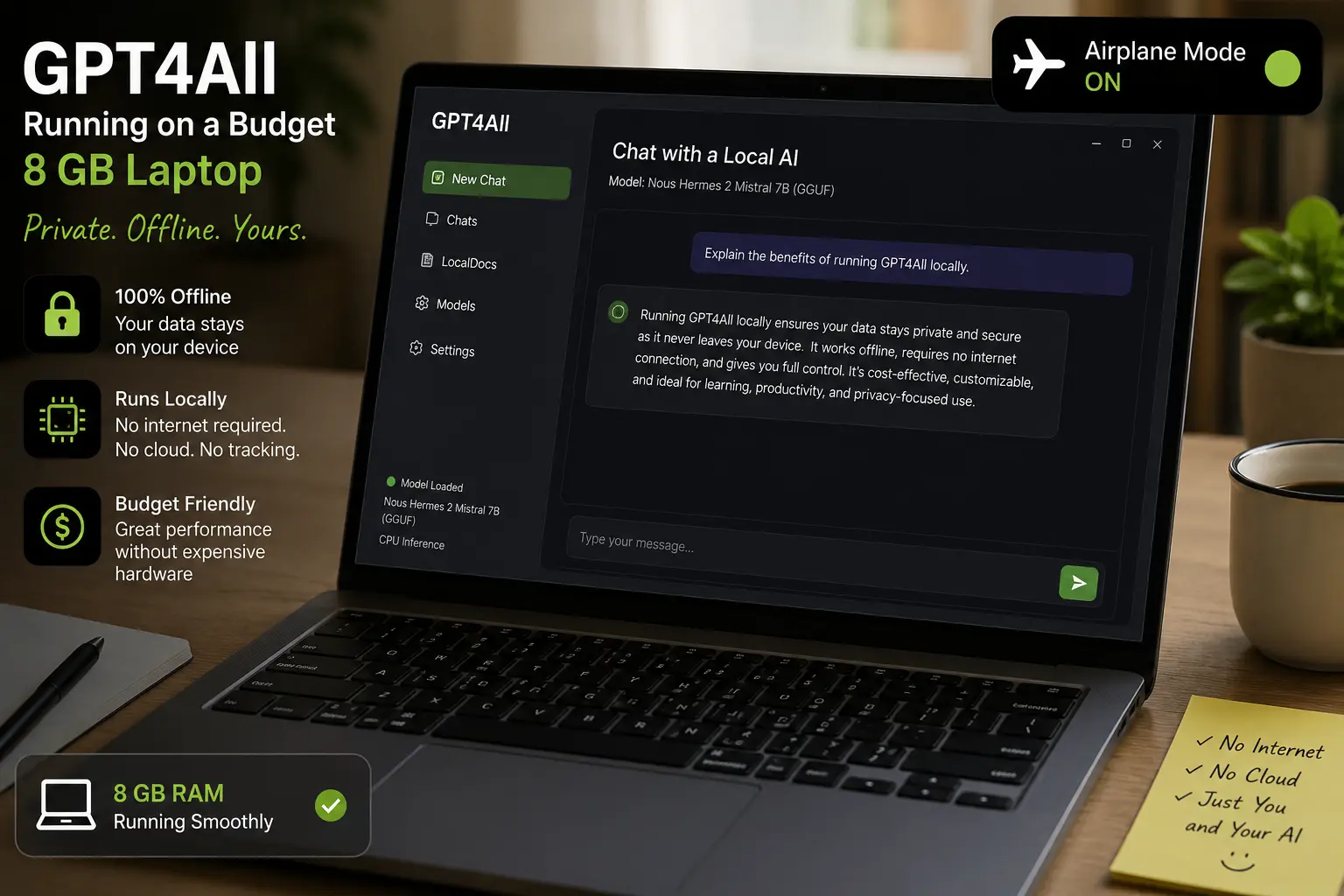
Why GPT4All Wins for This Use Case
- Built for CPU-only inference — no GPU required at all
- 3-minute install — single download, no configuration
- Small curated model list — less overwhelming for beginners
- LocalDocs feature — chat with your own files offline
- Zero telemetry — verified no signal needed after download
- Open source, free forever
Real Limitations
- Noticeably slower than GPU-accelerated tools
- Smaller model selection than Ollama or LM Studio
- Quality is more basic than cloud AI — set expectations accordingly
Every laptop-focused guide misses the single biggest fact about rural connectivity: far more people have a phone than a 16 GB laptop. PocketPal AI is built by the Hugging Face community specifically to bring local AI models to phones, and it is the best free option I tested for this exact situation.
PocketPal supports loading GGUF model files directly, which means access to a wide range of model sizes rather than being locked into one provider’s curated list. On my 6 GB RAM test phone, a 1B parameter model loaded and ran entirely offline, with reasonable response times for everyday questions. On the budget 4 GB phone, the same setup worked but was noticeably slower — still usable, just not fast.
It is open source and fully auditable, with verified zero outbound traffic during conversations confirmed through network monitoring on all test devices. The setup involves choosing and downloading a model the first time — done once while you have signal — and after that, the app needs nothing from the network ever again.
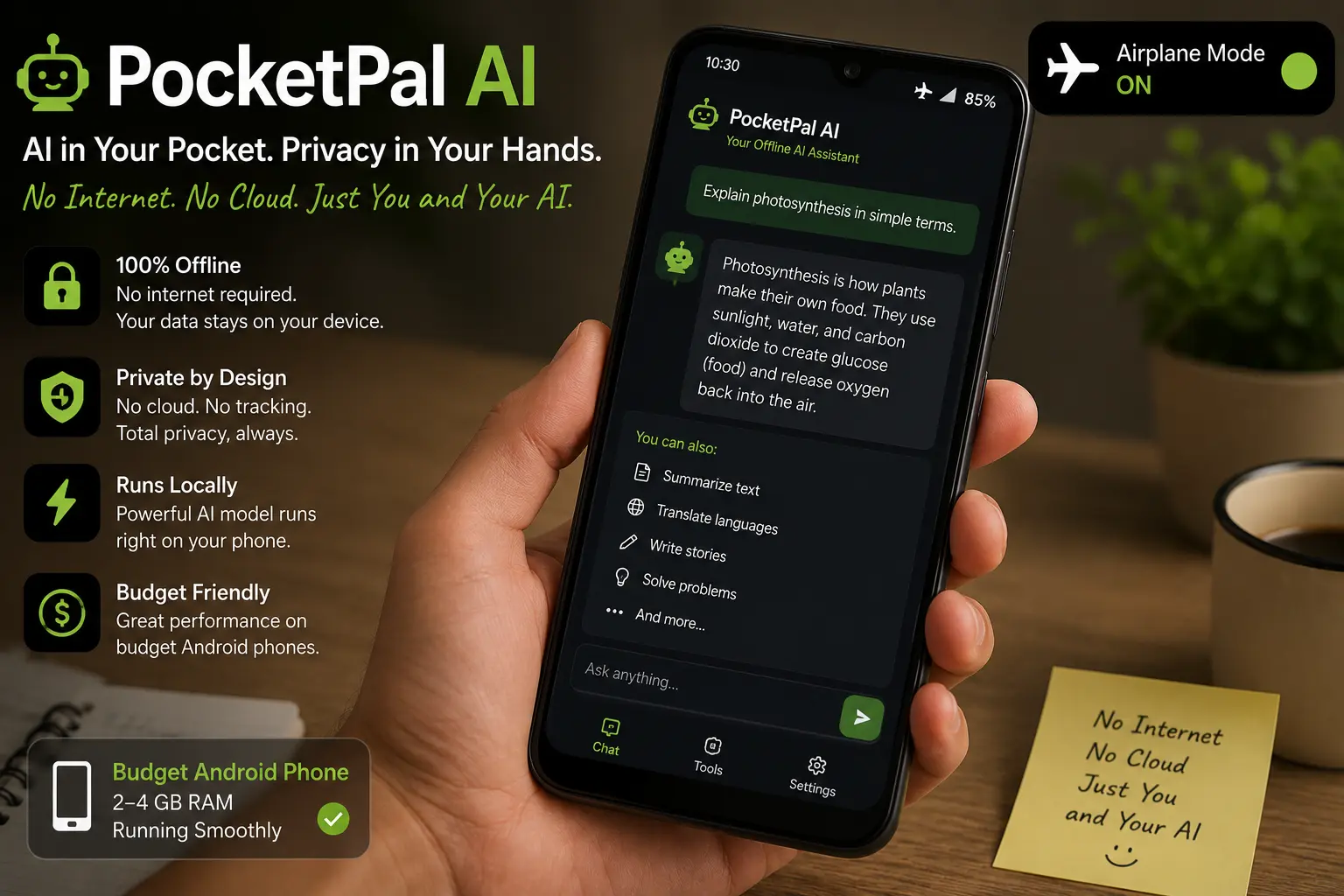
Why PocketPal Wins for Phone-First Users
- Works on phones with as little as 4 GB RAM
- Open source — fully auditable, zero telemetry verified
- Supports any GGUF model — not locked to one provider
- Free with no ads, no account, no subscription
- Clean, simple interface for non-technical users
Real Limitations
- Slower than MLC Chat’s device-optimized compilation
- Manual model selection — slightly more setup than a one-tap install
- Battery drain during longer sessions, as with any local AI app
If GPT4All is the tool for the most limited hardware, Jan AI is the step up for someone with a reasonably capable laptop who wants a genuinely pleasant chat experience. It positions itself as a fully offline alternative to ChatGPT, and the comparison is fair — the interface is clean, familiar, and requires zero terminal knowledge.
Jan AI is fully open source and built around privacy by default — everything runs locally and nothing is tracked, verified with zero outbound traffic during my offline testing. It supports a range of open models and lets you import GGUF files manually if you want more selection than the built-in browser offers.
The honest tradeoff compared to GPT4All is hardware requirements — Jan AI is more comfortable on 8 GB of RAM and genuinely good at 16 GB, while GPT4All is the better choice if your laptop is more limited than that. If your hardware supports it, Jan AI delivers a more complete, modern chat experience for daily offline use.
Download Jan AI Free — All PlatformsWhy Jan AI Is a Strong Step Up
- Polished, ChatGPT-style interface — no terminal
- Fully open source, zero telemetry by design
- Verified offline — zero outbound traffic confirmed
- Import any GGUF model manually for more options
- Full Windows, Mac, and Linux support
Real Limitations
- More comfortable on 8 GB+ RAM than the most basic hardware
- Smaller community than Ollama for troubleshooting
More Options: MLC Chat, Ollama, Layla, LM Studio
MLC Chat takes a different technical approach than the other phone apps — it compiles each model specifically for your phone’s exact chip, which makes it noticeably faster on supported hardware. On a newer flagship phone, this can mean meaningfully quicker responses than PocketPal running the same size model. The catch is real: MLC Chat requires Android 10 or later with at least 4 GB of RAM, isn’t available on the Google Play Store, and requires sideloading an APK file — a small extra step that may feel unfamiliar to a first-time user. It also locks you into a fixed, pre-compiled model list rather than letting you load any file you find. For someone with a newer phone who is comfortable with a slightly more technical setup, the speed gain is worth it. For a first offline AI app, PocketPal’s simpler setup is the safer starting point. Get MLC Chat free
Ollama is the right tool if someone in a rural community wants to build something more specific — a custom offline tool for a school, clinic, or cooperative that needs AI built into it. One terminal command installs it, one command downloads and runs a model, and it exposes a local API that developers can build on top of. It is not the tool to hand directly to a non-technical end user, since there is no chat window at all by default — but as the foundation for a custom local project serving an entire rural community, it is the strongest option here. Pair it with Open WebUI if a simple shared chat interface is also needed. Get Ollama free
Layla AI focuses heavily on feeling like a natural conversation partner rather than a sterile Q&A tool, and in side-by-side testing it produced the most personable, natural-sounding responses of the mobile apps tried. For someone who wants an offline AI that feels less like a search box and more like talking to someone, Layla is worth trying. The free tier covers genuine offline use, with optional paid features available if wanted later — not required for the core offline functionality this guide is about. Get Layla AI free
LM Studio has the most polished model browser of any tool tested, showing RAM requirements clearly before you download anything — genuinely useful for someone unsure what their hardware can handle. The honest limitation for rural use specifically: it is most comfortable on 16 GB of RAM, which is a step above the budget hardware many rural users actually have. If your laptop meets that bar, it is an excellent, easy-to-use offline option. If it doesn’t, GPT4All or Jan AI are the more realistic starting points. Get LM Studio free
What These Tools Can Actually Help With (and What They Can’t)
Honesty matters more here than almost anywhere else I write about AI. Here is a clear, practical picture of what free offline AI tools can genuinely help with — and where they hit a hard limit that no amount of clever prompting fixes.
What Offline AI Can Genuinely Help With
What Offline AI Cannot Do — No Exceptions: It cannot check today’s weather, today’s market or crop prices, current news, or anything requiring live information, because it has no internet connection at all. It only knows what was included in its training data up to a fixed cutoff date. It will sometimes confidently state something incorrect, especially on specific facts, numbers, or anything requiring real-time accuracy — always verify anything important through another source before acting on it.
Which Tool for Which Situation?
Pick Your Tool By Situation
Final Verdict: AI Tools That Work in Rural Areas Offline Free in 2026
Download once, use forever, zero ongoing internet — verified with the connection physically off across a budget laptop and two phones: