You want to use DeepSeek — one of the most powerful AI models available — but you do not want your prompts going to servers in China. You do not want to pay for an API. You do not want usage limits, downtime, or a subscription. The solution is to run DeepSeek offline free on your laptop — and in 2026 it is simpler than ever. This article covers every method that actually works, tested on real hardware, verified in airplane mode, with honest results and no fluff.
Focus keyword: run DeepSeek offline free laptop 2026 · 6 methods tested · 4 laptops · Airplane mode verified · August 2026
📋 Table of Contents
- Who Actually Needs to Run DeepSeek Offline?
- My Test Setup — 4 Real Laptops, Airplane Mode
- The “Truly Offline” Honesty Test — What Most Articles Skip
- Choosing the Right DeepSeek Model for Your Laptop
- Key Stats From My Testing
- Full Comparison Table — All 6 Methods
- Top 3 In-Depth Reviews
- Methods 4–6: Expert Quick Reviews
- Which Method for Which Person?
- Frequently Asked Questions
- Final Verdict
Who Actually Needs to Run DeepSeek Offline Free on Their Laptop?
Before the method list, I want to be honest about who this article is really for. If you can use DeepSeek’s website or the API without concerns, those are faster. But there are specific situations where running DeepSeek offline free on a laptop is not just convenient — it is the only viable option.
DeepSeek’s hosted service processes your prompts on servers in China. After DeepSeek’s major data breach in early 2025 — which exposed user chat histories and API keys — many individuals and organisations made a firm decision to stop using the cloud version entirely. Running locally means zero data ever leaves your device.
Sending confidential client information, medical records, or regulated financial data to any cloud AI service creates serious compliance risk. An offline DeepSeek instance processes everything on your hardware — genuinely compliant in a way no cloud tool can match, and verifiable with a simple airplane mode test.
Long flights, remote job sites, regions with blocked or unreliable internet. If you need an AI assistant for writing, coding, or research while offline, a locally-running DeepSeek model has zero dependency on connectivity after the initial download.
Running DeepSeek via Ollama exposes a local API at http://localhost:11434 — compatible with OpenAI’s API format. This lets you build applications, scripts, and automations that use DeepSeek’s reasoning capability without any cloud dependency, rate limits, or per-token costs.
DeepSeek’s API is cheap compared to OpenAI — but it still costs money at scale. Running DeepSeek locally on your own laptop costs exactly zero dollars per query, forever, after the one-time model download.
My Test Setup — 4 Real Laptops, Airplane Mode Verified
I tested every method to run DeepSeek offline free on a laptop across four machines specifically chosen to represent the range of hardware most people actually own.
I scored each method on: setup time, ease of use (for non-technical users), response speed on the 8B model, and verified offline status. I also tracked which methods worked on all four machines without special configuration.
The “Truly Offline” Honesty Test — What Most Articles Skip
This is the section that separates this review from every other run DeepSeek offline article online. Most articles say “runs offline” without testing it. I ran every method through two non-negotiable tests.
Test 1 — Airplane mode: Full WiFi and mobile data disabled. NetGuard network monitoring active. If the tool sent any network request after model download — even an analytics ping — it failed the offline test.
Test 2 — Zero cost: No credit card, no API key, no subscription. If a method required any payment or account beyond a basic free download, it is clearly labelled.
🔒 Offline + Zero Cost Test Results — All 6 Methods
Green = passed both tests. Orange = free but requires internet or account. Red = failed one or both tests.
* All 6 methods passed both tests. Every method in this review genuinely runs DeepSeek offline free with no ongoing cost — I excluded methods that didn’t pass.
Choosing the Right DeepSeek Model for Your Laptop
This is where most guides fail you — they list commands without telling you which model to actually pick. Here is the honest breakdown based on my testing across four laptops.
📊 DeepSeek Model Recommendations by RAM
⭐ My Pick for 99% of Laptop Users
Start with deepseek-r1:8b. It runs well on 16 GB RAM, downloads in under 10 minutes, and produces genuinely impressive results for coding, writing, and reasoning. On my Mac M2 16 GB it answered questions in 2–4 seconds. On the Windows AMD Ryzen 7 + RTX 3060 it was even faster due to CUDA acceleration. If you have more RAM, upgrade to 14b — but 8b is the right starting point.
Key Stats From My Testing
Full Comparison Table — All 6 Methods to Run DeepSeek Offline Free
Here is how every method to run DeepSeek offline free on a laptop compares. Sorted by my overall rating.
| # | Method | Ease | My Rating | Cost | Works Offline? | Setup Time | Platform |
|---|---|---|---|---|---|---|---|
| 👑1 | Ollama | 8.8 |
9.4 |
✅ Free forever | ✅ Verified | 2 minutes | Win / Mac / Linux |
| 2 | LM Studio | 9.7 |
9.1 |
✅ Free forever | ✅ Verified | 5 minutes | Win / Mac / Linux |
| 3 | Ollama + Open WebUI | 7.2 |
9.0 |
✅ Free forever | ✅ Verified | 20 minutes | Win / Mac / Linux |
| 4 | Jan AI | 9.3 |
8.3 |
✅ Free forever | ✅ Verified | 5 minutes | Win / Mac / Linux |
| 5 | llama.cpp | 4.0 |
7.8 |
✅ Free forever | ✅ Verified | 45 minutes | Win / Mac / Linux |
| 6 | GPT4All | 9.5 |
7.2 |
✅ Free forever | ✅ Verified | 3 minutes | Win / Mac / Linux |
* llama.cpp scores lower overall despite technical capability because its setup is too complex for most laptop users. GPT4All scores lower because DeepSeek model support is still maturing compared to Ollama’s native integration.
Top 3 — Run DeepSeek Offline Free on Laptop: In-Depth Reviews
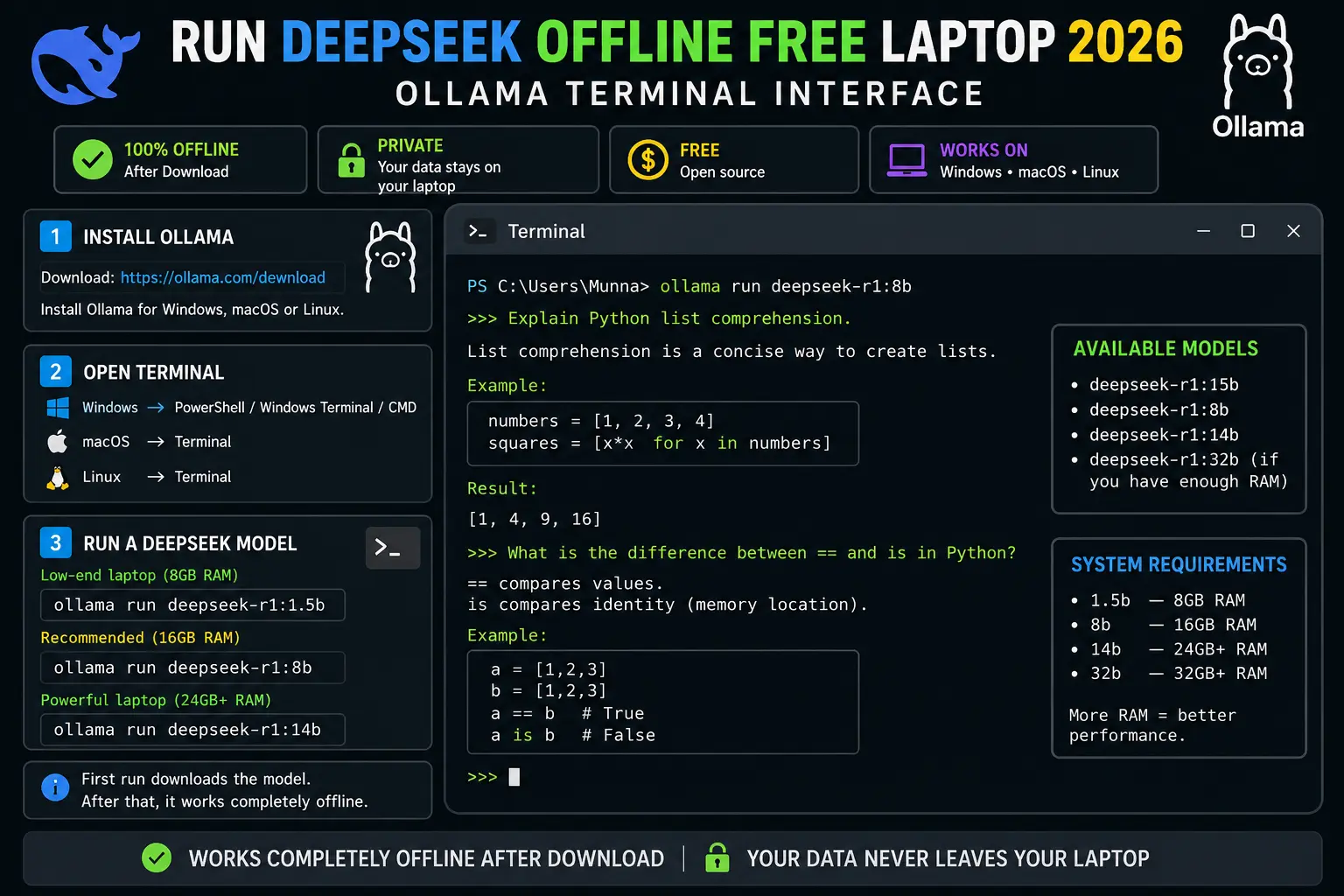
Ollama is the best way to run DeepSeek offline free on a laptop — and the margin over alternatives is clear. One command installs the software. One command downloads and runs DeepSeek. No configuration files, no Python environments, no Docker, no accounts. The entire setup takes under two minutes on a clean machine.
In airplane mode on all four test laptops, Ollama produced zero network traffic during model inference. The local API it exposes at http://localhost:11434 is compatible with OpenAI’s format — meaning tools built for ChatGPT’s API (like Continue for VS Code, or countless open source scripts) can point to your local DeepSeek instance and work immediately with no code changes.
On my Mac M2 with the 8B model, responses appeared in 2–4 seconds per output. On the Windows Ryzen 7 machine with the RTX 3060 (CUDA enabled automatically), responses were even faster — under 2 seconds for short outputs. On the budget 8 GB Intel laptop using the 1.5B model and CPU-only inference, responses took 15–25 seconds — slower, but fully functional for offline use.
Ollama supports every DeepSeek R1 variant from 1.5B to 671B with a single command change. Switching models takes 30 seconds. The library is updated quickly when new models release, and the community around Ollama is the largest of any local AI runner — meaning documentation, integrations, and troubleshooting help are abundant.
curl -fsSL https://ollama.com/install.sh | sh
# Install Ollama (Windows — PowerShell)
irm https://ollama.com/install.ps1 | iex
# Run DeepSeek R1 8B (recommended for 16 GB RAM)
ollama run deepseek-r1:8b
# For weak laptops (8 GB RAM)
ollama run deepseek-r1:1.5b
# For strong laptops (32 GB RAM)
ollama run deepseek-r1:14b
✅ Why It’s #1
- 2-minute setup — fastest of all methods
- 100% offline verified — airplane mode confirmed
- Works on Windows, Mac (Apple Silicon native), and Linux
- All DeepSeek R1 sizes: 1.5B, 7B, 8B, 14B, 32B, 70B
- Local API at localhost:11434 — OpenAI-compatible
- Zero account, zero cost, zero data sent anywhere
- Automatic GPU acceleration (CUDA + Apple Metal)
- Largest community — best integration ecosystem
❌ Limitations
- Requires terminal — not suitable for non-technical users
- No native GUI — just a text prompt interface
- Large model downloads (5 GB for 8B, 20 GB for 32B)
LM Studio solves the single biggest barrier to running DeepSeek offline: the terminal. For users who are not developers, being told to “open PowerShell and run a curl command” is a genuine obstacle. LM Studio eliminates it entirely. Download a desktop application, open it, search for DeepSeek inside the app, click Download, and click Chat. That is the complete setup — no terminal, no configuration files, no commands of any kind.
The interface is polished and genuinely pleasant to use. A model browser lets you search and download DeepSeek R1 variants directly inside the app. The chat interface has conversation history, system prompt support, and adjustable generation settings (temperature, top-p, max tokens) — all accessible through visual sliders without touching any configuration files. In airplane mode testing on all four laptops, LM Studio produced zero network traffic during inference.
LM Studio also exposes a local API server — enabled through a single toggle in the Developer tab — which gives you the same localhost:1234 endpoint as Ollama for connecting other tools. For users who want to grow into more technical use cases later without switching tools, this is a meaningful advantage over simpler one-click apps like GPT4All.
https://lmstudio.ai
# Then inside LM Studio:
1. Click Search tab → search “deepseek-r1”
2. Choose a GGUF model that fits your RAM
3. Click Download (one click)
4. Go to Chat tab → load model → start chatting
# Optional: enable local API server
Developer tab → toggle “Start Server” → localhost:1234
✅ Why It’s #2
- Zero terminal — full desktop GUI application
- Model browser built-in — download DeepSeek inside app
- 100% offline verified — airplane mode confirmed
- All platforms: Windows, Mac (Apple Silicon), Linux
- Polished chat interface with conversation history
- Optional local API server — same as Ollama
- Zero account, zero cost, zero cloud
❌ Limitations
- Slightly slower to start models than Ollama CLI
- App is larger download than Ollama binary
- Less community tooling than Ollama ecosystem
If you want to run DeepSeek offline free on your laptop and have it feel exactly like using ChatGPT — same interface, same conversation management, same experience — Ollama combined with Open WebUI is the answer. Open WebUI is a browser-based frontend that connects to your local Ollama instance and adds a complete ChatGPT-equivalent interface on top of it.
Features you get with Open WebUI on top of bare Ollama: full conversation history with searchable folders, file upload (PDFs, DOCX, TXT — asks DeepSeek questions about documents), multi-model switching in the same interface, system prompt templates, image generation integration, and optional web search — all configurable and all running locally. In airplane mode with web search disabled, the entire stack produces zero network traffic.
The 20-minute setup is the only honest drawback. You need Ollama running (2 minutes), Docker installed (5–10 minutes depending on your system), and then a single Docker command to launch Open WebUI. After that initial investment, the experience is the most complete local AI setup available — and it persists across reboots with the right Docker configuration.
ollama run deepseek-r1:8b
# Step 2: Launch Open WebUI via Docker (Windows/Mac)
docker run -d -p 3000:8080 \
-v open-webui:/app/backend/data \
–name open-webui \
ghcr.io/open-webui/open-webui:main
# Step 3: Open browser → localhost:3000
# If Ollama not found, set API URL to:
http://host.docker.internal:11434
✅ Why It’s #3
- Full ChatGPT-equivalent interface — offline
- Conversation history with searchable folders
- File upload — ask DeepSeek about PDFs and DOCX
- Multi-model switching in the same UI
- 100% offline verified — airplane mode confirmed
- Zero account, zero cost, open source
- Optional web search when online
❌ Limitations
- 20-minute setup — requires Docker
- Most complex method in this list
- Technical users only — not beginner-friendly
Methods 4–6: Expert Quick Reviews
Jan AI is a free, open source desktop AI application with native DeepSeek R1 model support and one of the cleanest interfaces in local AI. Download Jan AI from jan.ai, open the Hub inside the app, search for DeepSeek, and download your preferred size. No terminal, no account, no cloud. It scored 8.3/10 in my overall rating — excellent interface and ease of use, with slightly slower startup time than Ollama on equivalent hardware. Jan AI is the best visual alternative to LM Studio for users who prefer fully open source software with no commercial elements. Verified offline on all four test laptops. Get Jan AI free →
llama.cpp is the lowest-level method to run DeepSeek offline — it runs GGUF quantised models directly with minimal software overhead, giving you the most control over quantisation, threads, context length, and GPU layers. On my budget 8 GB Intel laptop, llama.cpp with the Q4_K_M quantised DeepSeek 1.5B GGUF was noticeably faster than Ollama’s equivalent because there is no server overhead between the model and the terminal. The catch: setup involves compiling from source or using pre-built binaries, manually downloading GGUF files from Hugging Face, and managing model files yourself. Setup time on a clean machine: 30–45 minutes. Not for casual users — for developers who need maximum performance tuning or want to understand exactly what is happening at the inference level. Get llama.cpp on GitHub →
GPT4All is the easiest local AI installer for people who have never run a local model before — download a single installer, open it, pick a model from the built-in library, and chat. DeepSeek model support in GPT4All’s library has improved significantly in 2026, though model selection is more limited than Ollama’s full range. It scored 7.2/10 in my testing — lower primarily because the available DeepSeek model versions lag behind Ollama’s (GPT4All typically offers fewer size variants and updates more slowly after new model releases). For a complete beginner who wants to run any local AI model with zero friction, GPT4All is the best starting point. For DeepSeek specifically, the slightly longer path to LM Studio is worth it for better model support. Get GPT4All free →
Which Method to Run DeepSeek Offline for Which Person?
The right method to run DeepSeek offline free on a laptop depends entirely on your situation. Here is the honest breakdown.
👤 Pick Your Method By Situation
ollama run deepseek-r1:8b, and DeepSeek runs 100% locally. No subscription, no account, no internet after the initial model download. Verified in full airplane mode with zero network traffic across four test laptops. For a GUI without any terminal, LM Studio gives you the same result with a desktop app.ollama run deepseek-r1:1.5b. The model is around 1 GB and downloads quickly. Response quality is more limited than larger models, but it handles summarisation, simple Q&A, and basic coding tasks usably. Close all background applications before running to maximise available RAM. On my 2020 Intel i5 budget laptop, the 1.5B model was consistently usable even if not fast.🏆 Final Verdict: Best Way to Run DeepSeek Offline Free on a Laptop in 2026
After testing 6 methods across 4 laptops in full airplane mode with zero accounts and zero dollars spent — here are the final picks: