I am a solo web developer running an AI review site on a tight budget. Every month I saw articles saying “the best AI tools for 2026” — and every single one cost at least $20 a month. I refused to pay it. So I figured out how to use AI tools offline without spending money — and I have been doing it daily for over a year now. This is my exact setup. Not theory. My actual tools, my actual device, my actual workflow.
Focus keyword: how to use AI tools offline without spending money · My personal setup · August 2026
You can use AI tools offline without spending money by installing a free app (Jan AI or GPT4All), downloading a free open-source AI model once over WiFi, and then switching off your internet permanently for daily use. Total cost: £0. Total setup time: under 10 minutes. Works on any laptop with 8GB+ RAM and most modern smartphones.
📋 Table of Contents
- Why I Went Offline — The Honest Reason
- How Offline AI Actually Works — Plain English
- My Device — What I Actually Use
- My 3-Layer Setup Framework
- Total Cost Breakdown — Everything I Use
- Step-by-Step: Get Started in 10 Minutes
- Which Model Should You Download?
- My Actual Daily Workflow
- The Phone Setup — AI in My Pocket, No Data
- Honest Limitations — What It Cannot Do
- Frequently Asked Questions
- Final Verdict
Why I Went Offline — The Honest Reason
I went offline with AI tools because I could not afford cloud subscriptions and I did not want to send my work to someone else’s server. Both reasons turned out to be the right ones.
When I started MeetAITools.com in 2024, I was a solo developer with no funding and no income from the site yet. ChatGPT Plus was $20 a month. Claude Pro was $20 a month. Every AI writing tool I looked at had a monthly bill. I added them up and the total for tools I was actually using regularly came to about $60–80 a month — more than my hosting costs.
At the same time, I was testing privacy claims for this site. I started running tools in airplane mode to see what actually sent data and what didn’t. What I found changed how I thought about the whole category: most “private” tools were not private at all. They sent your prompts to servers every single time. The only tools that were genuinely private were the ones running entirely on my own device.
Those two problems had the same solution: local offline AI. Free because there is no subscription. Private because there is no server. I switched my entire daily workflow to offline tools in early 2025 and have not paid for a cloud AI subscription since.
How Offline AI Actually Works — Plain English
Offline AI works by downloading the AI’s “brain” — called a model — onto your own device once. After that, every time you type a prompt, your device does all the thinking locally. No internet connection is involved because nothing needs to travel to a remote server — the server is now your own computer or phone.
Think of it this way. When you use ChatGPT, your words travel over the internet to a huge server farm owned by OpenAI. Their computers do the thinking and send the answer back. You need internet both ways — your words going out, the answer coming back.
Offline AI is different. The AI model — a file that is between 500MB and 5GB in size — lives on your hard drive. When you type a prompt, your own CPU or GPU does the thinking. Nothing goes anywhere. The answer comes from your own machine. This is why it works in a basement, on a plane, in a rural field, or anywhere with zero signal.
💡 The Key Insight Most People Miss
AI models are just files. Large files — but files. Once downloaded, they sit on your hard drive exactly like a document or a photo. Your device reads the file and uses it to respond to your prompts. No subscription, no API, no connection. The model does not expire, does not phone home, and does not have a usage limit.
My Device — What I Actually Use
I want to be specific here because most guides show you benchmarks from expensive hardware. Here is what I actually own and use every day.
🖥️ My Actual Daily Devices
This is not a powerful machine by any standard. No GPU means all inference runs on CPU — which is slower than setups people benchmark on YouTube. But it works. It produces useful output every day. And it costs nothing after the initial download.

My 3-Layer Setup Framework
After a year of daily offline AI use I have settled into what I call a 3-layer setup. Each layer serves a different purpose and uses a different tool. Together they cover every AI task I need without spending money or using internet.
For all serious writing work — drafting posts, summarising research, answering complex questions, brainstorming. Jan AI on my Windows laptop with Qwen 2.5 7B model. 16GB RAM means this runs comfortably. This is my primary tool for 80% of my AI tasks.
For quick questions when away from my desk — on the commute, away from office, or when my laptop is not available. PocketPal AI on my Android phone with Llama 3.2 1B. Slower output than my laptop but works anywhere, including zero-signal areas.
For transcribing recorded audio, converting voice notes to text, and generating subtitles for videos. Buzz (free) with Whisper large-v3 model on my laptop, completely offline. Used weekly rather than daily but invaluable when I need it.
Total Cost Breakdown — Everything I Use
My entire offline AI setup costs exactly £0 per month. Every tool is free and open source. Every model is free to download. There is no subscription, no API key, and no account required for any part of the stack.
💰 My Complete Offline AI Stack — Cost Breakdown
Step-by-Step: Get My Setup Running in 10 Minutes
Here is exactly how to replicate my laptop setup. Follow these steps and you will have free offline AI running in under 10 minutes.
Windows: right-click Start → System → check Installed RAM. Mac: Apple menu → About This Mac. If you have 8GB, use Phi-4 Mini. If you have 16GB, use Qwen 2.5 7B. Both are free.
Go to jan.ai — download the installer for Windows, Mac, or Linux. Install it like any normal application. No account, no email, nothing to sign up for.
Open Jan AI → click Model Hub. The app shows your RAM and highlights which models will work. Download either Phi-4 Mini (2.5GB, for 8GB RAM) or Qwen 2.5 7B (4.7GB, for 16GB RAM). Both are free. Wait for the download to complete — this is the last time you need internet.
Seriously — just turn it off. Click the WiFi icon in your taskbar and disconnect. Jan AI will keep working perfectly. This is the moment your AI becomes genuinely free and genuinely private.
Open a new chat in Jan AI. Select your downloaded model from the dropdown. Type any question. If you get a response — congratulations. You are now using AI offline without spending money. That’s it.

Which Model Should You Download?
Choose your model based on your RAM — not based on which model sounds most impressive. The right model for your hardware will feel fast and natural. An oversized model will be so slow it becomes unusable. Match model to RAM first, quality second.
| Your RAM | Model to Download | Size | Speed (CPU) | Quality | Cost |
|---|---|---|---|---|---|
| 4GB (tight) | TinyLlama 1.1B | 600MB | 5–8 tok/s | Basic | Free |
| 8GB RAM | Phi-4 Mini | 2.5GB | 4–5 tok/s | Good | Free |
| 8GB RAM | ⭐ Llama 3.2 1B | 1.1GB | 5–7 tok/s | Good | Free |
| 16GB RAM | ⭐ Qwen 2.5 7B | 4.7GB | 3–5 tok/s | Excellent | Free |
| 16GB RAM | Phi-4 Mini | 2.5GB | 6–9 tok/s | Very Good | Free |
| 32GB RAM | DeepSeek R1 Distill | 8GB+ | 3–6 tok/s | Near Cloud | Free |
I personally use Qwen 2.5 7B on my 16GB laptop every day. For my 8GB phone I use Llama 3.2 1B. Both are completely free, downloaded once, and have been running daily since I set them up.
My Actual Daily Workflow — What I Use Offline AI For
Here is exactly how I use offline AI in my actual daily work. Not hypothetical use cases — what I did this week.
📋 My Actual Weekly Offline AI Tasks
None of this requires internet. None of this requires a subscription. All of it happens on a mid-range laptop and a mid-range phone that I already owned before I started.
📊 Time I Save Per Week — Offline AI vs Manual Writing
Honest personal estimate. AI drafts always need editing — this is time saved on first draft, not total writing time.
* Rough personal estimates only. AI drafts still need editing — these are not “set and forget” tools. The saving is in getting from blank page to something to work with.
The Phone Setup — AI in My Pocket, No Data Used
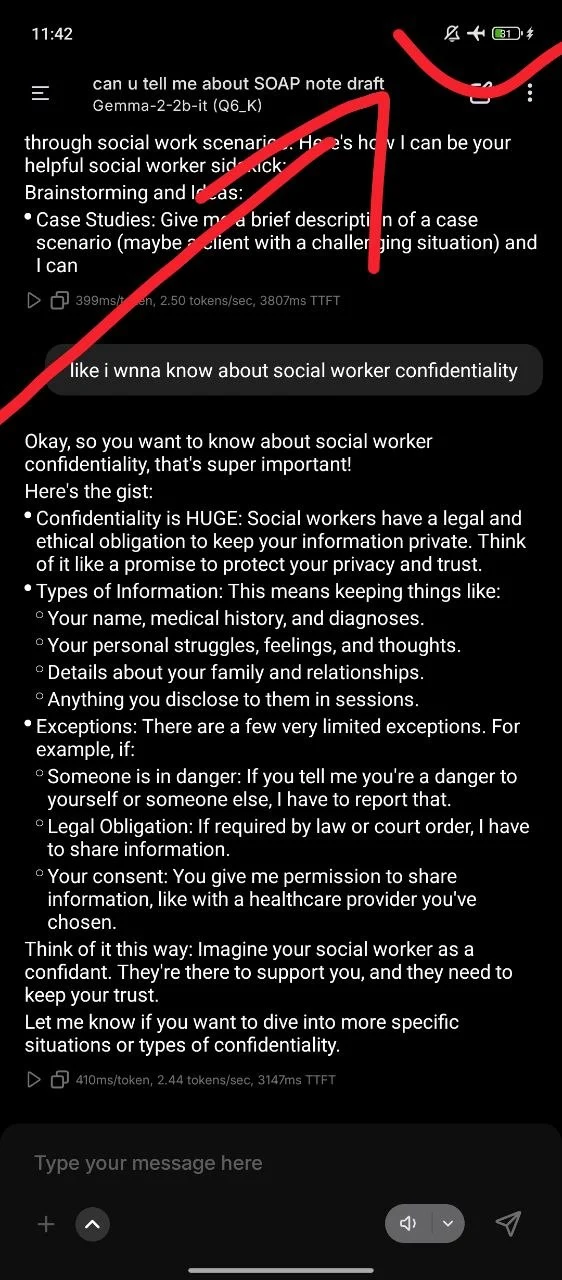
PocketPal AI on Android (also available on iPhone) gives you a working AI chatbot on your phone that uses zero mobile data after the initial model download. I use it when away from my desk — it is slower than my laptop but genuinely useful for quick questions and short tasks.
My phone setup is simpler than my laptop setup. I downloaded PocketPal AI from the Google Play Store (free), downloaded Llama 3.2 1B inside the app (1.1GB, one-time over WiFi), and that was it. The model has been on my phone for months. I use it regularly.
It is slower than my laptop — about 4–6 tokens per second on my phone’s CPU, which means a 100-word response takes about 20–30 seconds. That sounds slow but in practice it is fine for the types of questions I ask on the move: quick edits, short ideas, a sentence I can’t get right. You ask, you wait a few seconds, you get something usable.
Honest Limitations — What Offline AI Cannot Do
I want to be completely straight with you about what my free offline setup cannot do — because most guides skip this part entirely.
⚠️ What You Give Up Going Offline and Free
These are real limitations I experience daily. Not dealbreakers for me — but you should know them before deciding.
- Complex reasoning: Free offline models (7B parameters) are noticeably less capable than ChatGPT or Claude on complex multi-step problems, nuanced analysis, and deeply technical questions. For those, I still occasionally use a cloud tool when I have internet available.
- Real-time information: Offline models know nothing about events after their training cutoff. No current news, no live prices, no recent developments. You are working with knowledge that ends at a fixed date.
- Speed: On a CPU-only laptop, responses take 20–40 seconds for longer outputs. You cannot use it as a typing assistant that completes your sentences in real time — it is more of a prompt-and-wait workflow.
- Image generation: Text-only models cannot generate images. Offline image generation requires a different setup (Stable Diffusion) with much higher storage and RAM requirements.
- Very long documents: Models have context windows — a limit on how much text they can process at once. Very long documents (50+ pages) need to be summarised in chunks rather than all at once.
For my specific use cases — writing, editing, brainstorming, summarising — these limitations almost never matter. For other use cases they might matter a lot. That is an honest assessment, not a sales pitch.
📄 Also on MeetAITools Offline AI Summariser PDF Free No Account 2026 — For Documents and Reports🏆 My Setup Summary — Free Offline AI Every Day
This is genuinely how I use AI tools offline without spending money — daily, on real work, on mid-range hardware. Start with Layer 1 and add the others when you are ready.