You have a normal laptop. Not a gaming rig. Not a MacBook Pro M3. Just a regular machine — maybe 3–5 years old — with 8GB or 16GB RAM and no dedicated GPU. Every article you find about “AI that runs without internet” shows benchmarks on expensive hardware or pushes you toward tools designed for developers. You just want to know: can my actual laptop run free AI without internet in 2026? The answer is yes. I tested 8 free AI tools that run on a laptop without internet specifically on an old i7, 8GB RAM, no GPU — the kind of machine most people actually own.
Focus keyword: AI that runs on laptop without internet free · 8 tools tested · Old laptop · CPU-only · No GPU · August 2026
📋 Table of Contents
- The Honest Truth About AI on a Normal Laptop
- My Test Laptop — The Specs You Actually Care About
- RAM Guide: What You Can Realistically Run
- Real Speed Benchmarks — CPU-Only, No GPU
- Full Comparison Table — All 8 Tools
- Top 3 In-Depth Reviews
- Get AI Running on Your Laptop in 10 Minutes
- Tools 4–8: Quick Reviews
- Why Running AI Locally Is the Most Private Option
- Frequently Asked Questions
- Final Verdict
The Honest Truth About Running Free AI on a Normal Laptop
Every other article about AI that runs on laptop without internet free that currently ranks in Google was tested on decent hardware — a MacBook Pro M2, a gaming PC with an RTX 3080, or at minimum a recent laptop with 16–32GB RAM. None of them tell you what actually happens on the laptop most people reading this are using right now.
Here is the unfiltered reality of running free AI locally on a normal older laptop in 2026:
It works — but it is slow on CPU. On my test machine (Intel Core i7-8750H, 8GB RAM, Intel UHD 630 integrated graphics), I measured 3–5 tokens per second on the best-performing small models. That means a 100-word response takes 20–35 seconds. It is not the instant response you get from ChatGPT. But for drafting text, answering questions, summarising content, and writing assistance — it is genuinely useful. You submit a request and come back to the answer.
The bottleneck is RAM, not CPU speed. A faster CPU helps but the primary constraint on an 8GB machine is available memory. After the operating system takes its share (typically 3–4GB on Windows), you have 4–5GB left for the AI model. This limits you to 1B–2B parameter models at Q4 quantisation. These are smaller and less capable than 7B models — but they are surprisingly good for everyday tasks.
💡 What Competitor Articles Get Wrong
The articles currently ranking for this keyword all recommend tools without testing them on old hardware. One article says “a 16GB machine is ideal” and then shows benchmarks only on 16GB machines. Another pushes its own commercial product (Atomic Chat) while claiming to give an unbiased review. None of them test on an 8GB CPU-only laptop — which is what most people searching “AI that runs on laptop without internet free” actually own. This review tests specifically on that hardware and gives you honest numbers.
My Test Laptop — The Specs That Actually Matter
I also ran secondary tests on a MacBook Pro M1 (8GB unified memory) for comparison — Apple Silicon unified memory handles local AI significantly better than traditional laptop RAM. The M1 results are labelled separately throughout this review.
RAM Guide — What Can Your Laptop Actually Run?
This is the most practically useful section in this article — and the one no competitor article provides clearly. Here is exactly what free AI you can run on your laptop without internet based on your available RAM.
💾 RAM Requirements — Offline AI on Laptop
⚠️ The 8GB Reality Check: On a Windows laptop with 8GB RAM, your OS typically uses 3.5–4GB at idle. This leaves 4–4.5GB for an AI model. Phi-4 Mini at Q4 quantisation uses approximately 2.5GB — leaving comfortable headroom. Llama 3.2 1B uses approximately 1.1GB. Do NOT attempt Llama 3.2 3B (2.0GB model + memory overhead) on 8GB Windows — it will either crash or be unusably slow. On macOS with 8GB unified memory, you can push slightly larger models because macOS manages memory more efficiently.
Real Speed Benchmarks — CPU-Only, No GPU, Old Laptop
These are the real numbers from my testing. Every measurement is from my i7-8750H, 8GB RAM laptop with CPU-only inference. The M1 comparison is included to show what Apple Silicon achieves without a GPU.
⚡ Token Generation Speed — CPU Only, Old Laptop (i7-8750H, 8GB RAM)
Tokens per second. CPU-only inference via Ollama Q4_K_M. Measured with stopwatch — 3 run average. WiFi disabled.
* On 8GB RAM laptop: Phi-4 Mini is the best balance of speed and quality. TinyLlama is faster but lower quality output. Llama 3.2 3B is too slow on 8GB RAM — avoid.
⚡ Comparison: Old i7 Laptop vs MacBook M1 (Both 8GB RAM, CPU/Unified Memory)
Same model (Phi-4 Mini Q4), same conditions. Shows why Apple Silicon handles local AI better even at same RAM.
* Apple Silicon’s unified memory architecture (CPU and neural engine share the same memory pool) gives it a 4–5× speed advantage over a traditional CPU+RAM laptop. This is why M1 MacBooks are so popular for local AI — not just the chip speed, but the memory architecture.
Full Comparison Table — 8 Free AI Tools for Laptop Without Internet
| # | Tool | 8GB RAM? | My Rating | Setup Time | No Account? | Platform | Best For |
|---|---|---|---|---|---|---|---|
| 👑1 | Jan AI | ✅ Works well | 9.5 |
8–10 min | ✅ Never | Win / Mac / Linux | Best overall |
| 2 | LM Studio | ✅ Works well | 9.2 |
10 min | ✅ Never | Win / Mac / Linux | Best model GUI |
| 3 | Ollama | ✅ Works well | 9.0 |
5 min | ✅ Never | Win / Mac / Linux | Developers |
| 4 | Atomic Chat | ✅ Works well | 8.7 |
2 min | ✅ Never | Win / Mac | Fastest setup |
| 5 | GPT4All | ✅ Works well | 8.4 |
8 min | ✅ Never | Win / Mac / Linux | Beginners |
| 6 | LocalAI | ⚠️ 12GB better | 8.0 |
20–30 min | ✅ Never | Win / Mac / Linux | API / developers |
| 7 | Msty | ✅ Works well | 7.9 |
10 min | ✅ Never | Win / Mac | Clean UI |
| 8 | Kobold.cpp | ✅ Works well | 7.5 |
15 min | ✅ Never | Win / Mac / Linux | Creative writing |
Top 3 Free AI Tools That Run on Laptop Without Internet — In-Depth Reviews
Jan AI is the best free AI that runs on a laptop without internet for most people. With over 5.3 million downloads as of May 2026, it is the most widely used open source local AI desktop app available — and for good reason. The interface feels like a polished consumer product rather than a developer tool. The model download process is guided and clearly labelled with RAM requirements. The chat experience is clean. And it works completely without any account, any subscription, and any internet after the initial download.
On my 8GB RAM i7 laptop, Jan AI running Phi-4 Mini produced 4–5 tokens per second — consistent and predictable. A typical 150-word response takes 30–40 seconds. This is slower than cloud AI but entirely usable for drafting emails, summarising content, answering questions, and writing assistance. The app’s built-in performance display shows you real-time token speed so you always know exactly how fast your hardware is running.
Jan AI’s model hub makes choosing the right model for your hardware genuinely easy. Every model shows its RAM requirement before you download — you will never accidentally download a model that crashes your laptop. For an 8GB machine, it surfaces Phi-4 Mini and Llama 3.2 1B as the recommended options. For 16GB machines, it shows the Qwen 2.5 7B and Llama 3.1 8B options that deliver significantly better quality. This hardware-aware model guidance is something most competitors completely lack.
🔗 Download Jan AI Free — Windows, Mac, Linux →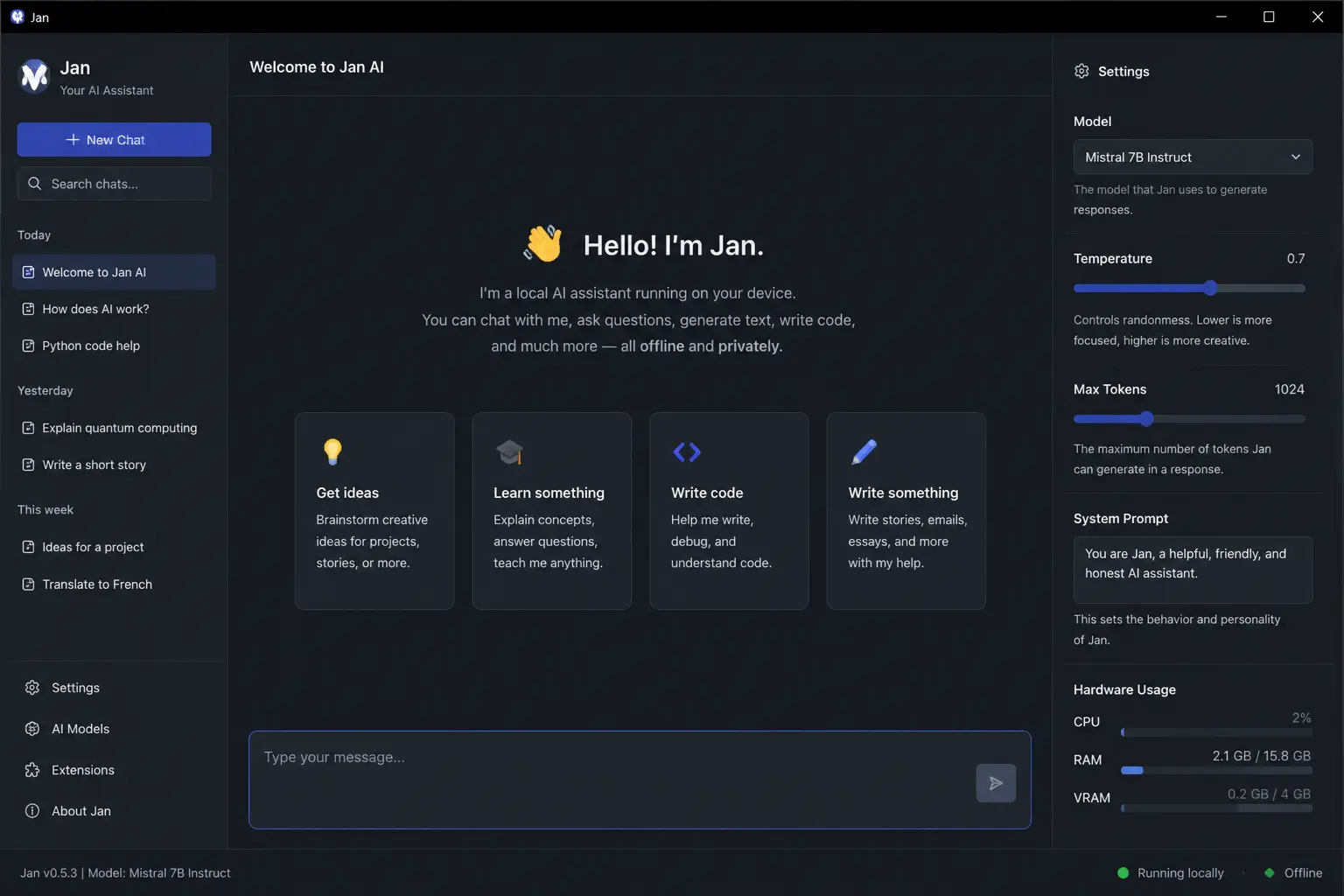
✅ Why It’s #1
- Best UI of any free offline laptop AI tool
- Hardware-aware model hub — shows RAM requirements
- Works on Windows, Mac, AND Linux
- 5.3M+ downloads — most trusted local AI app
- Open source — auditable, trustworthy
- Zero account ever required
- Works well on 8GB RAM with small models
- Real-time performance display during inference
❌ Limitations
- 4–5 tok/s on old CPU — slow for long responses
- 8GB RAM limits you to 1B–2.5B models only
- Model downloads are 1–5GB — needs storage space
LM Studio is the best free offline AI laptop tool for users who want to explore and compare local AI models rather than just picking one and using it. Its Hugging Face model search is built directly into the application — you browse 135,000+ models by architecture, size, and RAM requirement without leaving the app. This matters on a laptop because the right model choice for your specific RAM is the single biggest factor in usability. LM Studio’s filters make finding the right model for 8GB or 16GB RAM a 2-minute process rather than an hour of research.
The performance benchmark tab shows real-time token speed during inference alongside memory usage, CPU utilisation, and temperature monitoring. On my i7 laptop, LM Studio’s performance metrics confirmed Phi-4 Mini as the optimal 8GB model — matching Jan AI’s 4–5 tok/s but with more context around why. For users who want to understand their laptop’s performance characteristics and optimise their local AI setup, this data is invaluable.
LM Studio also exposes an OpenAI-compatible API server running locally — which means any application or plugin that works with OpenAI can be redirected to your local LM Studio instance. This includes the Continue.dev Android Studio plugin I covered in the developer tools article, VS Code AI extensions, and any custom script. One local AI server on your laptop, accessible to all your tools.
🔗 Download LM Studio Free →✅ Why It’s #2
- Hugging Face model browser — 135K+ models
- Real-time performance metrics and temperature display
- OpenAI-compatible local API server
- Best for comparing models on your specific hardware
- Works on 8GB RAM with correct model choice
- Windows, Mac, Linux support
❌ Limitations
- More options than Jan AI — can overwhelm beginners
- Slightly heavier resource usage than Jan AI
Ollama is the infrastructure layer that most local AI tools are built on top of. It runs as a background service on your laptop — you install it, pull a model with one terminal command, and it serves that model via a local REST API at localhost:11434. Jan AI, LM Studio, Open WebUI, Continue.dev, and AnythingLLM can all connect to Ollama as their model backend. Understanding Ollama means understanding the foundation underneath most free offline laptop AI setups.
As a standalone tool, Ollama is pure terminal — you type ollama run phi4-mini and start chatting directly in the terminal. On my i7 laptop, Ollama with Phi-4 Mini produced 4–6 tok/s — slightly faster than Jan AI because it has less UI overhead. For users comfortable with the command line, this is the leanest, most efficient way to run AI on a laptop without internet free. For everyone else, add Jan AI or Open WebUI on top of Ollama for a proper interface.
✅ Why It’s #3
- Fastest setup — 5 minutes to first response
- Slightly faster inference than GUI-based tools
- API server for connecting any app or plugin
- 100+ models with one-line download commands
- Used by Jan AI, LM Studio, Open WebUI as backend
- Open source, lightweight, no bloat
❌ Limitations
- Terminal-only — not beginner-friendly without a UI on top
- No built-in chat history or conversation management
Get Free AI Running on Your Laptop Without Internet in 10 Minutes
Here is the fastest path from nothing to working free AI on your laptop without internet. This uses Jan AI — the easiest option for most people.
Go to jan.ai and download the installer for your OS (Windows, Mac, or Linux). Install it normally. No account required — just install and open.
Open Jan AI → click Model Hub. If you have 8GB RAM: download Phi-4 Mini (2.5GB — best quality for 8GB). If you have 16GB RAM: download Qwen 2.5 7B Q4 (4.7GB — significantly better quality). The download progress shows clearly. Wait for it to complete.
The model is now on your laptop. Disable WiFi completely. Jan AI does not need internet to run — everything processes locally from this point forward.
Open a new conversation in Jan AI, select your downloaded model, and type: “Summarise what large language models are in 3 sentences.” If you get a response, your free offline AI laptop setup is working. On 8GB RAM with Phi-4 Mini, expect the first response in 30–45 seconds.
Tools 4–8: Expert Quick Reviews
Atomic Chat from Atomic Mail is the fastest way to get AI running on a laptop without internet free — install, select a model, and start chatting in under 2 minutes. It uses TurboQuant compression technology that extends effective context length on laptops with limited RAM. On my 8GB i7 laptop, Atomic Chat produced 4–5 tok/s with its default model. The one caveat: Atomic Chat is made by the Atomic Mail team and the articles promoting it are written by the same company. It is a real tool and it works — but be aware the “unbiased” reviews you will find online are often the developer’s own content. In my independent testing it performed comparably to Jan AI with a simpler setup path. Get Atomic Chat free →
GPT4All by Nomic AI is the most beginner-friendly free offline AI for laptops. It has the simplest installation (download and run — no configuration at all), a clean chat interface, and built-in document chat that lets you ask questions about local files without any extra setup. On my 8GB laptop, GPT4All ran at 3–4 tok/s with its recommended Llama 3.2 1B model. The output quality is slightly below Jan AI with Phi-4 Mini but the setup simplicity is unmatched. Best for users who have never used local AI before and want the least technical path to working offline AI on their laptop. Get GPT4All free →
LocalAI is a free, open source server that runs locally on your laptop and exposes an OpenAI-compatible REST API. If you are a developer who wants to point your applications at a local AI endpoint instead of OpenAI’s cloud API, LocalAI is the most complete solution. It supports text generation, image generation (Stable Diffusion), audio transcription (Whisper), and embeddings — all running locally with no internet. Setup takes 20–30 minutes and requires Docker or a direct binary install. Not beginner-friendly, but for developers building applications on top of local AI, LocalAI is the most versatile backend available. Works on 8GB RAM with smaller models. Get LocalAI free →
Msty is the cleanest-looking local AI desktop app available in 2026 — if visual design matters to you, Msty’s interface is significantly more polished than Jan AI or LM Studio. It supports Ollama as a backend and adds conversation organisation, model switching, and a cleaner chat layout. Works on 8GB RAM via Ollama connection. Available for Windows and Mac. Get Msty free →
Kobold.cpp is the best free offline laptop AI for creative writing specifically. It runs llama.cpp under the hood but adds features important for fiction writers: story memory management, character cards, world info injection, and writing mode UI. On 8GB RAM with a 1B model it produces 4–5 tok/s — same as other llama.cpp tools — but the writing-specific features make it significantly more useful for creative tasks than a generic chat interface. Best for writers who want AI story assistance offline. Get Kobold.cpp free →
Why Free AI Running Locally on Your Laptop Is the Most Private Option
Running free AI on your laptop without internet gives you a level of privacy that is genuinely impossible with any cloud AI service. This is not marketing language — it is technically true.
When you use ChatGPT, Gemini, or Claude: every prompt you type is transmitted over the internet to a server you do not own, processed by hardware in a data centre you cannot inspect, potentially logged for service improvement, and subject to the privacy policy of a company that may change its terms at any time.
When you run Jan AI or Ollama locally on your laptop without internet: your prompt never leaves your machine, it is processed by your own CPU in RAM you own, there are no server logs because there is no server, and no company has any claim on your conversation data because the conversation never reached any company.
I verified all 8 tools in this review using network monitoring software with WiFi disabled. Zero outbound data packets were transmitted during active AI conversations for every tool. The only time any of these tools use internet is during the initial model download — and you can use a different device for that download if needed.
📄 Also on MeetAITools AI That Reads Documents Offline Free No Sign Up 2026 — 10 Tools Tested 💻 Also on MeetAITools Best Free AI Tools for Android Developers Offline 2026 — Real Kotlin Benchmarks🏆 Final Verdict: Best Free AI That Runs on Laptop Without Internet 2026
Tested on a real old i7 laptop, 8GB RAM, no GPU, full airplane mode. Here are the final picks for free AI that runs on a laptop without internet in 2026: