Affinity Photo 2 Free Review Honest 2026
I cancelled Photoshop and used it daily for a month — here is what I actually foundI have been paying Adobe $22.99 a month for Photoshop since 2019. Last October, I received an email from a creative community I follow saying that Affinity Photo — the software I had dismissed for years as “a decent budget alternative” — was now completely free. Not a trial. Not a stripped version. The full professional tool, zero cost, following Canva’s acquisition of Serif.
I spent two weeks not believing it. Then I downloaded it, cancelled my Photoshop subscription, and used Affinity Photo 2 free as my only photo editing software for 30 days. I tracked every task where it succeeded, every task where it failed, and every moment I genuinely missed Photoshop. This is that honest 2026 review.
What Happened — How Affinity Photo 2 Became Free
Understanding the story matters because it affects how you think about the product’s future. This is not a “free tier with the good features locked” situation. It is something stranger and more interesting.
Canva — the Australian design platform known for templates and subscriptions — acquired Serif, the UK company behind Affinity, in March 2024 for a reported $380 million. The creative community braced for the obvious: subscriptions incoming, features behind paywalls, the death of the one-time-purchase model that made Affinity beloved.
That is not what happened. In late 2025, Canva merged all three Affinity applications — Photo, Designer, and Publisher — into a single unified app called Affinity by Canva (also called Affinity Studio) and made the core professional editing tools completely free. Sales of the old standalone versions stopped in October 2025. The existing Affinity V2 perpetual license holders kept their licenses indefinitely.
The free tier includes the full professional editing core. Advanced AI features — generative fill, AI background removal, AI upscaling — are locked behind a Canva Pro subscription at around $15/month. That is the business model: give away professional tools to get users into the ecosystem, then charge for the AI layer. For most users, the free core is more than enough. For this honest Affinity Photo 2 free review, I did not pay for Canva Pro — I tested only what is genuinely free.
What Affinity Photo 2 Free Does Well — The Genuine Strengths
I want to start with the positive because it deserves more than the usual cursory “it has layers and masks” treatment. The things Affinity Photo 2 does well, it does genuinely well — not “well for a free tool”, just well.
Performance on older hardware
This surprised me most. Photoshop on my 2019 Windows laptop — 16GB RAM, no dedicated GPU — had become genuinely painful to use. Large files lagged. Brush strokes delayed. Affinity Photo is widely regarded as being faster and more lightweight than Photoshop, with smooth panning and zooming at 60fps even on older hardware. I felt this immediately. On the same machine where Photoshop struggled, Affinity ran without hesitation. On the M2 MacBook Air it was almost instant on everything I threw at it. If you are on older hardware, this performance difference alone makes the switch worth considering.
RAW processing is a proper tool, not an afterthought
Photoshop requires Camera Raw as a separate step. Affinity Photo has a dedicated Develop Persona — a full RAW processing workspace that opens automatically when you import a RAW file. White balance, exposure, tone curves, noise reduction, lens corrections, chromatic aberration — all there, all non-destructive, all at the quality level you would expect from dedicated RAW software. I shoot Canon CR3 files and every one opened without issue. For photographers who want RAW processing in the same application as retouching, Affinity’s workflow is arguably cleaner than Photoshop’s.
The layer system is the same as Photoshop in the ways that matter
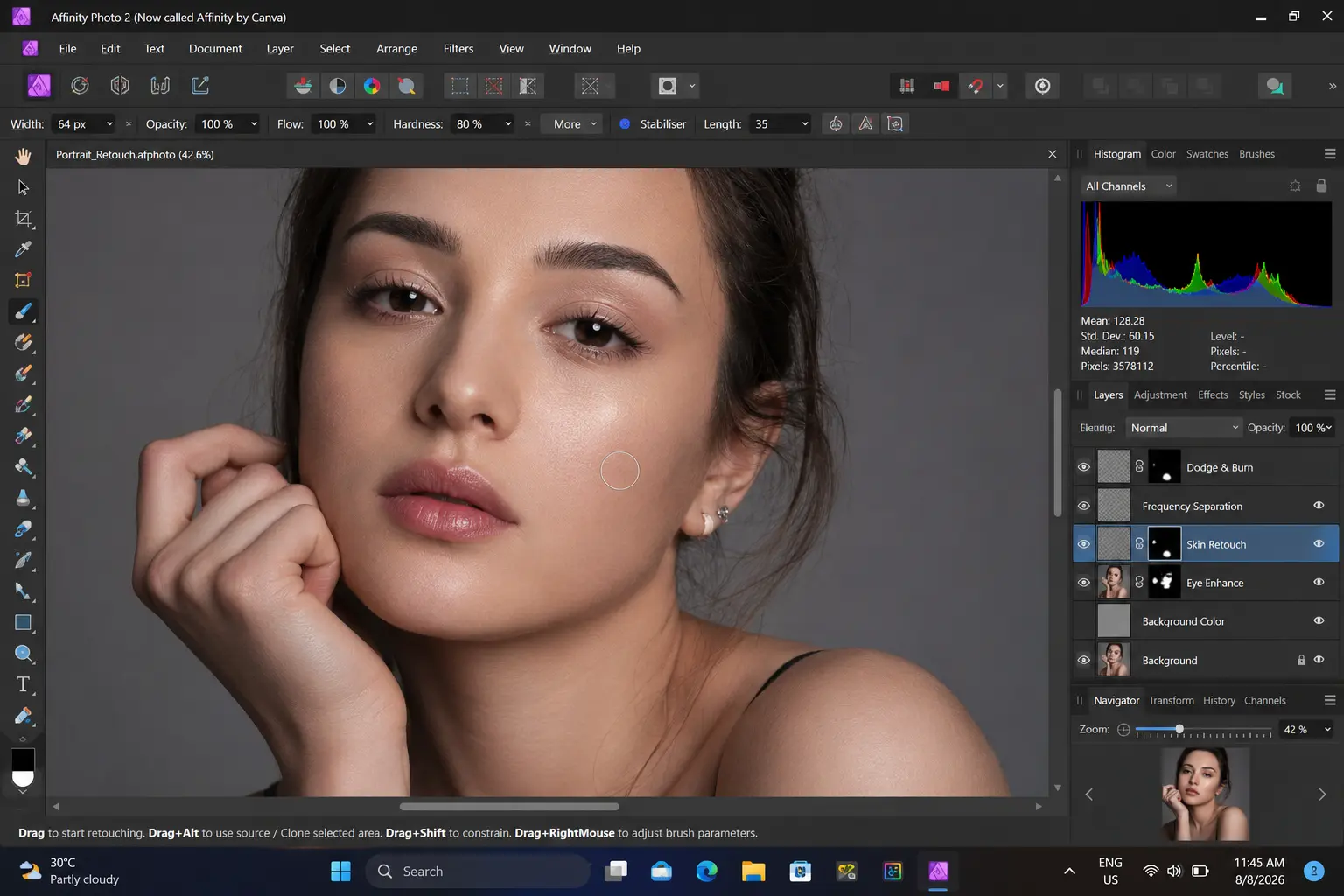
Pixel layers, adjustment layers, live filter layers, group layers, mask layers, blend modes (all major ones), opacity control, layer effects, and non-destructive editing throughout. The keyboard shortcuts are close enough to Photoshop that muscle memory transfers within a few days. The layers work the same. Masks, blend modes, adjustment layers, healing tools, clone stamp, curves, and levels are all present and keyboard shortcuts are similar.
Retouching tools that do the actual job
Healing brush, clone stamp, patch tool, inpainting brush — all included in the free tier and all working at professional quality. I retouched six portrait sessions during the 30 days using only Affinity’s free tools. Frequency separation — the technique for retouching skin texture separately from tone — is built in as a proper function, not a workaround. I have seen this in tutorials for Photoshop that require multiple steps. In Affinity, it is a single menu option. That impressed me.
Three tools you rarely see free
PSD compatibility — genuinely works
I opened 14 Photoshop PSD files from client projects during the 30 days. Twelve opened perfectly with full layer integrity. Two had minor issues — one had a Smart Object that would not resolve correctly, one had a Text Style that lost formatting. Affinity Photo supports PSD files though complex files with Smart Objects may not transfer perfectly. For straightforward layered PSDs, compatibility is reliable. For complex multi-Smart-Object agency work, check the specific file before committing.
What Affinity Photo 2 Free Cannot Do — Be Clear About This
Every positive review of a free tool risks glossing over limitations. This honest Affinity Photo 2 free 2026 review will not do that. There are three things I genuinely missed during the 30 days, and they matter for specific workflows.
Real Limitations — Free Tier Only
Affinity Photo 2 vs Photoshop — Side by Side 2026
This is the comparison most people want from an Affinity Photo 2 vs Photoshop honest 2026 review. I have tried to make it genuinely useful rather than comprehensive — covering what actually matters for the decision.
| Feature | Affinity Photo 2 Free | Photoshop ($22.99/mo) |
|---|---|---|
| Price | Free ✓ | $22.99/month |
| Layers and masks | Full ✓ | Full ✓ |
| RAW processing | Develop Persona ✓ | Camera Raw ✓ |
| Healing / Clone tools | Full ✓ | Full ✓ |
| Frequency separation | Built in ✓ | Manual workaround |
| HDR Merge | Included free ✓ | Included ✓ |
| Focus Stacking | Included free ✓ | Included ✓ |
| Panorama stitching | Included free ✓ | Photomerge ✓ |
| Smart Objects | Embedded docs only | Full ✓ |
| AI Generative Fill | Canva Pro only | Included ✓ |
| Neural Filters | Not available | Included ✓ |
| Image library (DAM) | Not available | Separate Lightroom needed |
| Plugin ecosystem | Limited | 30 years of plugins ✓ |
| Performance (older HW) | Faster ✓ | Heavier |
| Team collaboration | Solo use only | Creative Cloud ✓ |
| PSD compatibility | Good — some limits | Native ✓ |
The practical result: Affinity Photo now offers professional-grade pixel editing at no cost, filling the Photoshop-shaped gap in a subscription-free workflow. If your work depends on Photoshop’s machine-learning features — Generative Fill, Select Subject, Neural Filters — there is no real alternative. Pay the subscription. If you do not need those features, Affinity Photo covers everything else.
How to Download Affinity Photo 2 Free — Step by Step
The app is no longer called Affinity Photo 2 — it is now called Affinity by Canva or Affinity Studio. Same software, new name, unified with Designer and Publisher into one download.
Who Should Switch and Who Should Stay on Photoshop
This is the section that makes a review useful. Not “here are the features” — but specifically who gains from switching and who would regret it.
Switch to Affinity Photo 2 Free If…
- You pay for Photoshop but rarely use AI Generative Fill or Neural Filters
- You edit photos for personal use, freelance clients, or social media
- You are on older hardware and Photoshop has become slow
- You do portrait retouching — frequency separation is built in
- You shoot RAW and want processing + retouching in one app
- You do HDR or panorama work
- You work solo — no team collaboration needed
- You are a student who cannot afford Creative Cloud
Stay on Photoshop If…
- Your workflow depends on AI Generative Fill daily
- You work at an agency that shares files using Smart Objects
- You need real-time team collaboration and file commenting
- You rely on specific Photoshop plugins with no Affinity equivalent
- Your clients send files you are contractually expected to deliver back as fully compatible PSDs
- You use Neural Filters for skin smoothing or style transfer
- Lightroom + Photoshop integration is central to your workflow
Is Affinity Photo 2 the Best Free Photoshop Alternative in 2026?
As a best free Photoshop alternative 2026, Affinity Photo 2 is the strongest option for photographers and serious designers. The other options — GIMP, Photopea, Krita — each have a place but a different one.
GIMP is more customisable and has a larger plugin ecosystem. But the interface is significantly more dated and less intuitive, and the non-destructive workflow is not as clean. For experienced editors who want maximum configurability, GIMP is a serious tool. For someone switching from Photoshop who wants the transition to feel natural, Affinity is easier.
Photopea is the browser-based Photoshop clone — impressive for what it is, works with PSD files in any browser, no install needed. But it is a web app with the limitations that implies: slower on large files, no offline use, fewer advanced tools. For quick edits or opening PSDs without software installed, Photopea is excellent. For professional daily use, Affinity Photo 2 is the stronger choice.
Krita is built for digital painting and illustration — not photo editing. Different tool, different purpose.
For the specific category of photo editing and compositing at professional quality with zero subscription, Affinity Photo 2 free is the clear answer in 2026. The Affinity suite now covers 95% of Photoshop’s capabilities for the kinds of tasks most individual photographers and designers do daily — all at zero cost after the free acquisition.
My Honest Verdict After 30 Days
I did not go back to Photoshop. That is probably the most honest thing I can say at the end of this Affinity Photo 2 free review honest 2026.
After 30 days I renewed my Photoshop subscription for one month, ran the specific tasks where I had missed it, and decided the three missing features — Generative Fill, Smart Objects on complex files, and Neural Filters — are not things I use enough to justify $275.88 per year. I cancelled again. Affinity Photo 2 free handles everything in my regular workflow at quality I genuinely cannot distinguish from Photoshop output.
What surprised me most was not the feature parity — I expected that from everything I had read. What surprised me was the performance. On the same hardware where Photoshop had become a friction point, Affinity ran smooth. That practical difference in daily feel matters more than any feature list comparison.
The honest caveat: if you work in an agency environment, depend on AI Generative Fill for commercial work, or regularly collaborate with teams sharing Smart Object PSD files — do not switch yet. The limitations are real for those workflows. For everyone else, this is the most compelling piece of free creative software released in years. It being free is almost the least interesting thing about it. The interesting thing is that it is good.
→